Applies to: The Commitment Club, 1:1 Coaching
The Live Well Library is a collection of on-demand video resources available inside the Feel Good Hub to Forever Fit and Fabulous Club members and 1:1 coaching clients.
In the app, Library resources are listed as Workouts. This is simply how the platform organises content. Some items are educational videos or guidance, while others are physical workouts you can choose to follow.
This article explains where to find the Live Well Library and how to access and use the resources available to you.
On the Mobile App
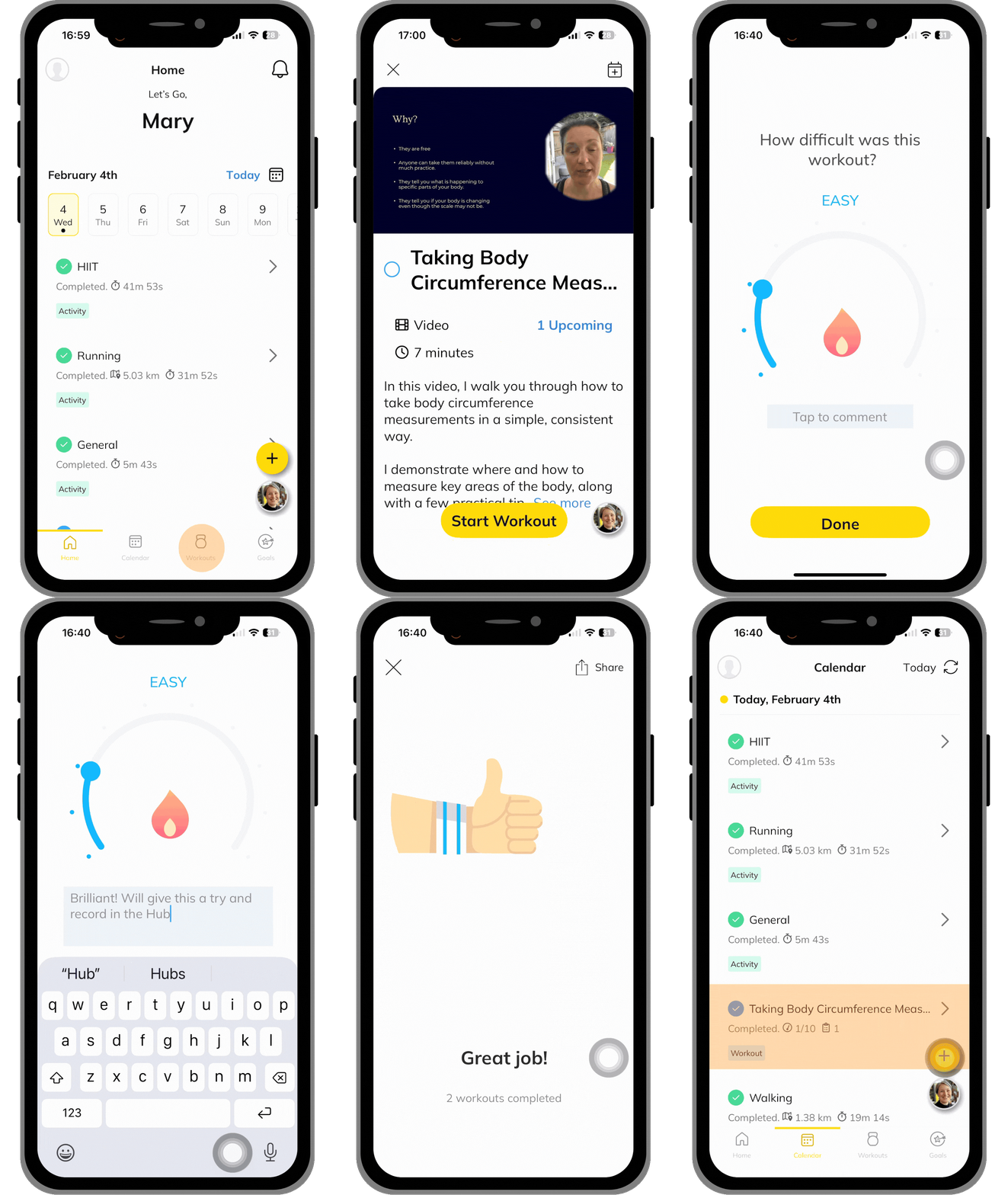
- Open the Feel Good Hub app on your phone.
- Tap the Workouts at the bottom of the screen to open your Training Library.
- Find the video or workout you want to access and tap the thumbnail.
- Tap Start Workout to begin watching. If you want schedule the workout for a different day, tap the calendar icon in the top-right corner, select a date and tap Save.
- When you’re finished, tap Stop, then choose End Workout or Discard.
- If you tap End Workout, you’ll be asked to rate how difficult it felt and can add a comment if you wish. Tap Done to save.
- You’ll then see a confirmation screen. From here, you can:
- Share your activity using the button in the top-right corner, or
- Tap the cross to close and view the workout recorded in your calendar.
Educational videos can be marked as complete in the same way as workouts. You don’t need to rate difficulty if it doesn’t feel relevant.
Click the video to enlarge
On the Web App
If you are using the web version, you'll need to add the workout to your schedule before you can play it.
Here’s how to do it:
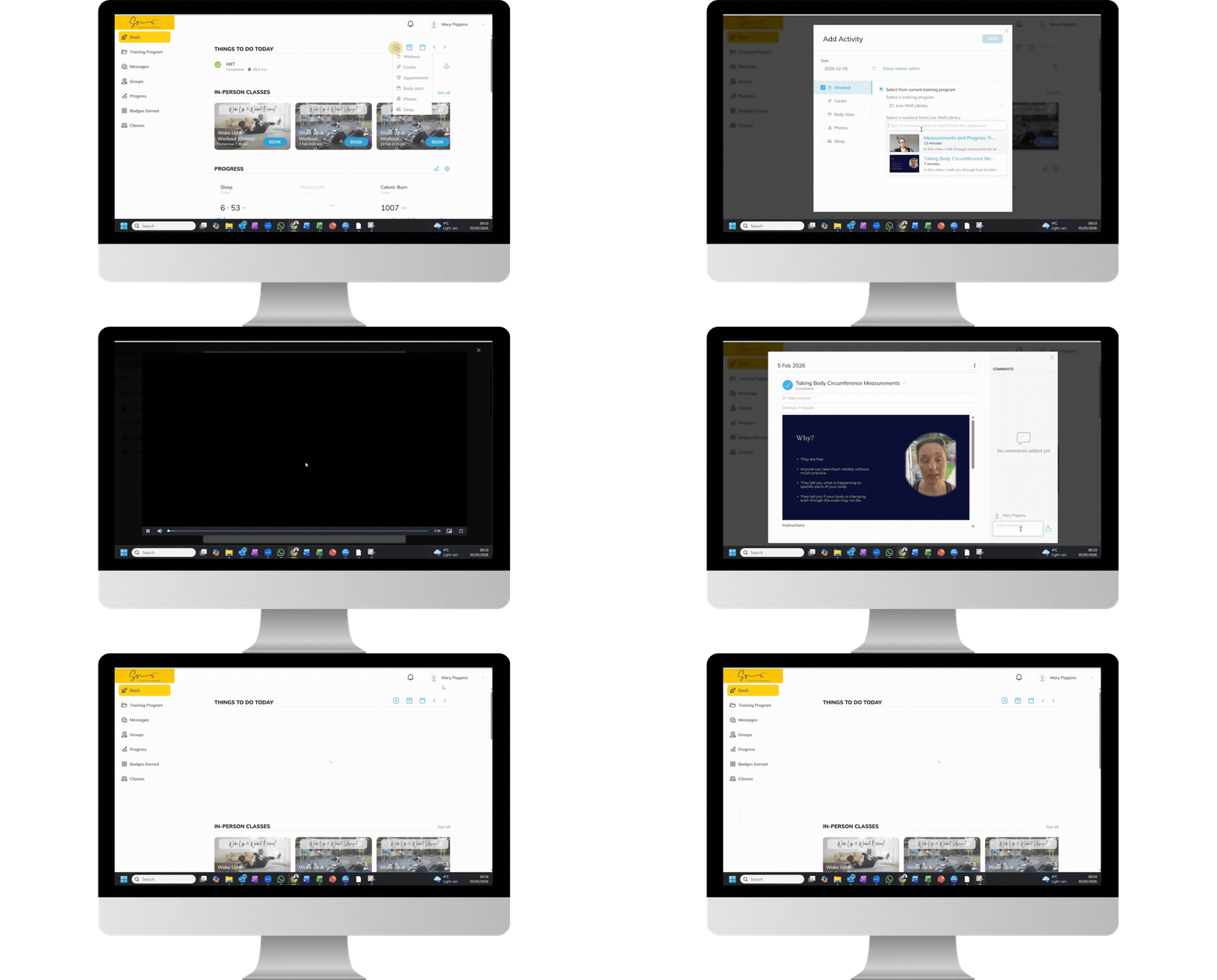
- Log in at susannahsimmons.trainerize.com.
- In the Things To Do Today panel, click the + (plus) icon.
- From the menu, select Workout.
- Choose the date you want to watch the video. The default is today.
- Clicking on date adds it to your schedule.
- You can select more than one date if you plan to repeat the workout.
- To remove a date, simply click it again to deselect it.
- Tick the box Select from current training program.
- If needed, choose Live Well Library from the dropdown list
- Choose the video from the workout list.
- Click Add to add it to your schedule on the selected date(s).
This will create a task on the date(s) you selected. To watch the video:
- Click on the task in your Calendar or Things To Do Today list.
- Click the video to start playing.
- When you've finished watching, click the X in the in the top-right corner.
- Click the Complete button.
- Type in a comment if you wish, then press Enter to save.
- Click the X in the top-right corner to close the workout window.
The web version involves a few extra steps, but once you’ve done it once or twice, it becomes quick and straightforward. We’ll continue to look for ways to make the experience even smoother.
Click the video to enlarge