Applies to: Forever Fit and Fabulous Club, 1:1 Coaching
Body measurements are one optional way to track progress over time in the Feel Good Hub. Some people find them helpful, while others prefer not to use them at all. Both approaches are completely valid.
This article explains how to record body measurements if you choose to use them.
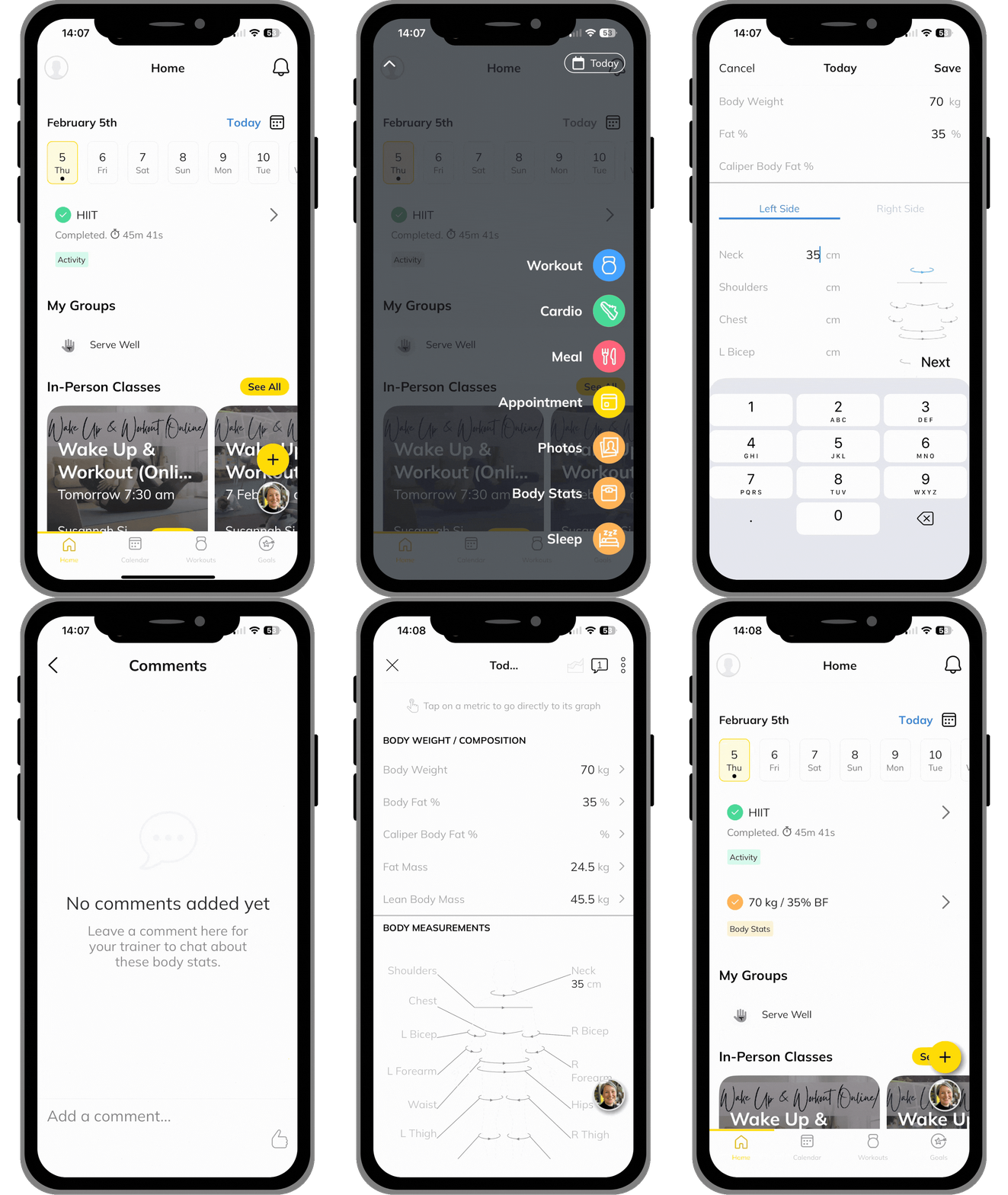
On the Mobile App
- Open the Feel Good Hub app on your phone.
- Tap the + (plus) icon in the bottom-right corner of the screen.
- If needed, tap Today in the top-right corner to choose a date,
- Select today or a single date in the past to enter measurements straight away.
- Select today and/or future dates to schedule the task.
- You can also choose to set a repeating task weekly, or monthly on the same date or day.
Tap Save to confirm
- Tap Body Stats.
- If prompted, enter your measurement and tap Save.
- If you scheduled a task, tap it in your Calendar or Things To Do Today list on the selected date to enter the information.
Once your measurement is logged, you can tap the entry in your Calendar to:
- View, add or edit a comment
- View your progress over time
- Edit the measurement
- Move the entry to a different day if needed
Click the video to enlarge
On the Web App
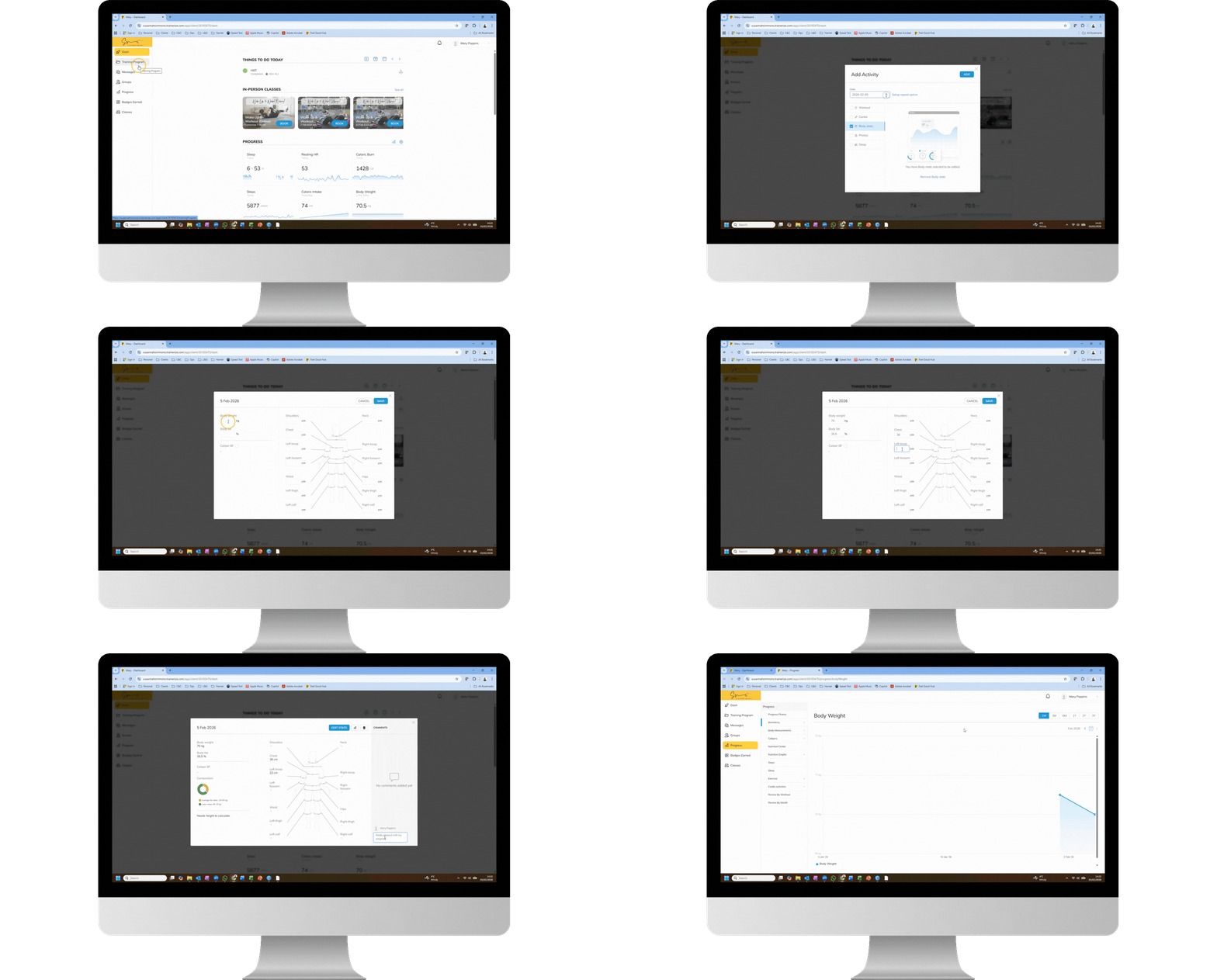
If you are using the web version, you'll need to add a Body Stats task to your schedule before you can record the information.
Here’s how to do it:
- Log in at susannahsimmons.trainerize.com.
- In the Things To Do Today panel, click the + (plus) icon.
- From the menu, select Body Stats.
- Choose the date you want to record the measurement(s) for. .
- The default is today.
- You can select a past date to backdate an entry, or a future date to schedule it.
- You can also set a repeating task by clicking on Setup repeat option
- Click Add to add the task to your diary on the selected date(s).
To record your measurement(s):
- Click on the task in your Calendar or Things To Do Today list.
- Enter the measurement value(s) and click the Save button.
- Type in a comment if you wish, then press Enter to save.
- From this task window you can also edit the entry and click the Chart button to view your progress.
- Click the X in the top-right corner to close the task window when finished.
Click the video to enlarge